NarratoAI 😎📽️

一站式 AI 影视解说+自动化剪辑工具🎬🎞️

📖 English | 简体中文

[//]: # ( harry0703%2FNarratoAI | Trendshift)

NarratoAI 是一个自动化影视解说工具,基于LLM实现文案撰写、自动化视频剪辑、配音和字幕生成的一站式流程,助力高效内容创作。
[![madewithlove](https://img.shields.io/badge/made_with-%E2%9D%A4-red?style=for-the-badge&labelColor=orange)](https://github.com/linyqh/NarratoAI) [![GitHub license](https://img.shields.io/github/license/linyqh/NarratoAI?style=for-the-badge)](https://github.com/linyqh/NarratoAI/blob/main/LICENSE) [![GitHub issues](https://img.shields.io/github/issues/linyqh/NarratoAI?style=for-the-badge)](https://github.com/linyqh/NarratoAI/issues) [![GitHub stars](https://img.shields.io/github/stars/linyqh/NarratoAI?style=for-the-badge)](https://github.com/linyqh/NarratoAI/stargazers) 💬 加入开源社区,获取项目动态和最新资讯。




首页

![](docs/index-zh.png)

视频审查界面

![](docs/check-zh.png)
## 未来计划 🥳 - [x] windows 整合包发布 - [ ] 优化剧情生成流程,提升生成效果 - [ ] 支持本地大模型 MiniCPM-V - [ ] 支持本地大模型 Qwen2-VL - [ ] ... ## 配置要求 📦 - 建议最低 CPU 4核或以上,内存 8G 或以上,显卡非必须 - Windows 10 或 MacOS 11.0 以上系统 ## 快速开始 🚀 ### 1. 申请 Google AI studio 账号 1. 访问 https://aistudio.google.com/app/prompts/new_chat 申请账号 2. 点击 `Get API Key` 申请 API Key 3. 申请的 API Key 填入 `config.example.toml` 文件中的 `gemini_api_key` 配置 ### 2. 配置 proxy VPN > 配置vpn的方法不限,只要能正常访问 Google 网络即可,本文采用的是 chash 1. 记住 clash 服务的端口,一般为 `http://127.0.0.1:7890` 2. 若端口不为 `7890`,请修改 `docker-compose.yml` 文件中的 `VPN_PROXY_URL` 为你的代理地址 ```yaml environment: - "VPN_PROXY_URL=http://host.docker.internal:7890" # 修改为你的代理端口;host.docker.internal表示物理机的IP ``` 3. (可选)或者修改 `config.example.toml` 文件中的 `proxy` 配置 ```toml [proxy] http = "http://xx.xx.xx.xx:7890" https = "http://xx.xx.xx.xx:7890" ``` ### 3. 使用【整合包】开始 📥 (适用与 Windows 用户) **NarratoAI 整合包 v0.1.2 发布啦** 🎉🎉🎉 关注微信公众号【NarratoAI助手】,回复关键词【整合包】即可获取最新下载链接!快来试试吧! 注意事项: - 当前仅提供 Windows 版本,Mac和Linux用户请使用 docker 启动。 ### 4. 使用【docker】开始🐳 (适用与 Mac 和 Linux 用户) #### ① 拉取项目,启动Docker ```shell git clone https://github.com/linyqh/NarratoAI.git cd NarratoAI docker-compose up ``` #### ② 访问Web界面 打开浏览器,访问 http://127.0.0.1:8501 #### ③ 访问API文档 打开浏览器,访问 http://127.0.0.1:8080/docs 或者 http://127.0.0.1:8080/redoc ## 使用方法 🛠️ #### 1. 基础配置,选择模型,填入APIKey,选择模型 > 目前暂时只支持 `Gemini` 模型,其他模式待后续更新,欢迎大家提交 [PR](https://github.com/linyqh/NarratoAI/pulls),参与开发 🎉🎉🎉
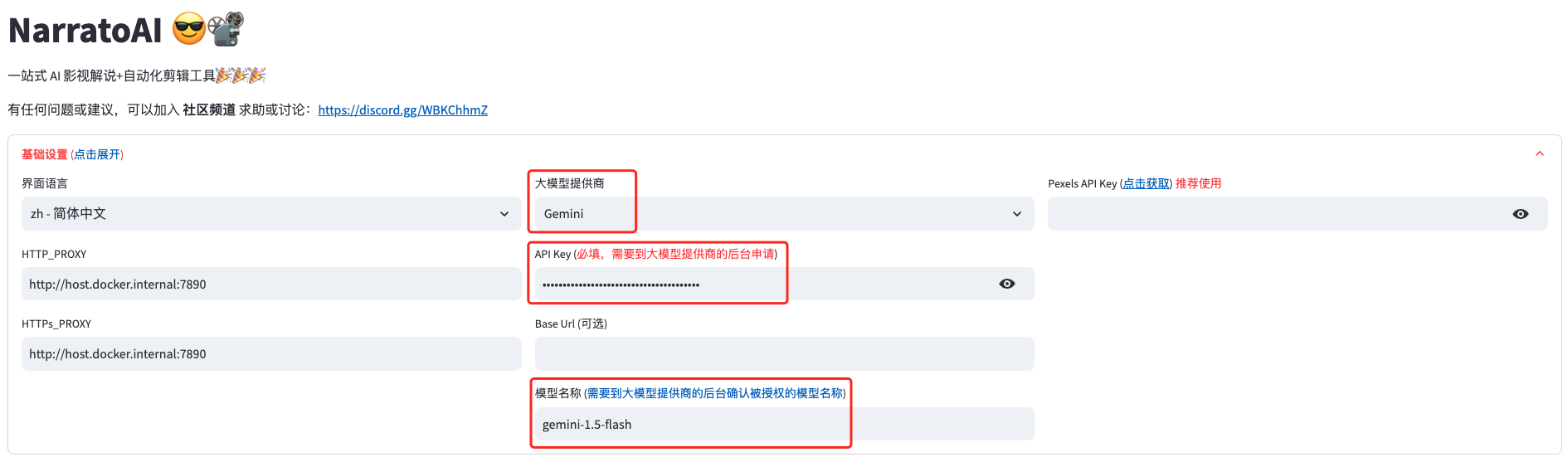
001
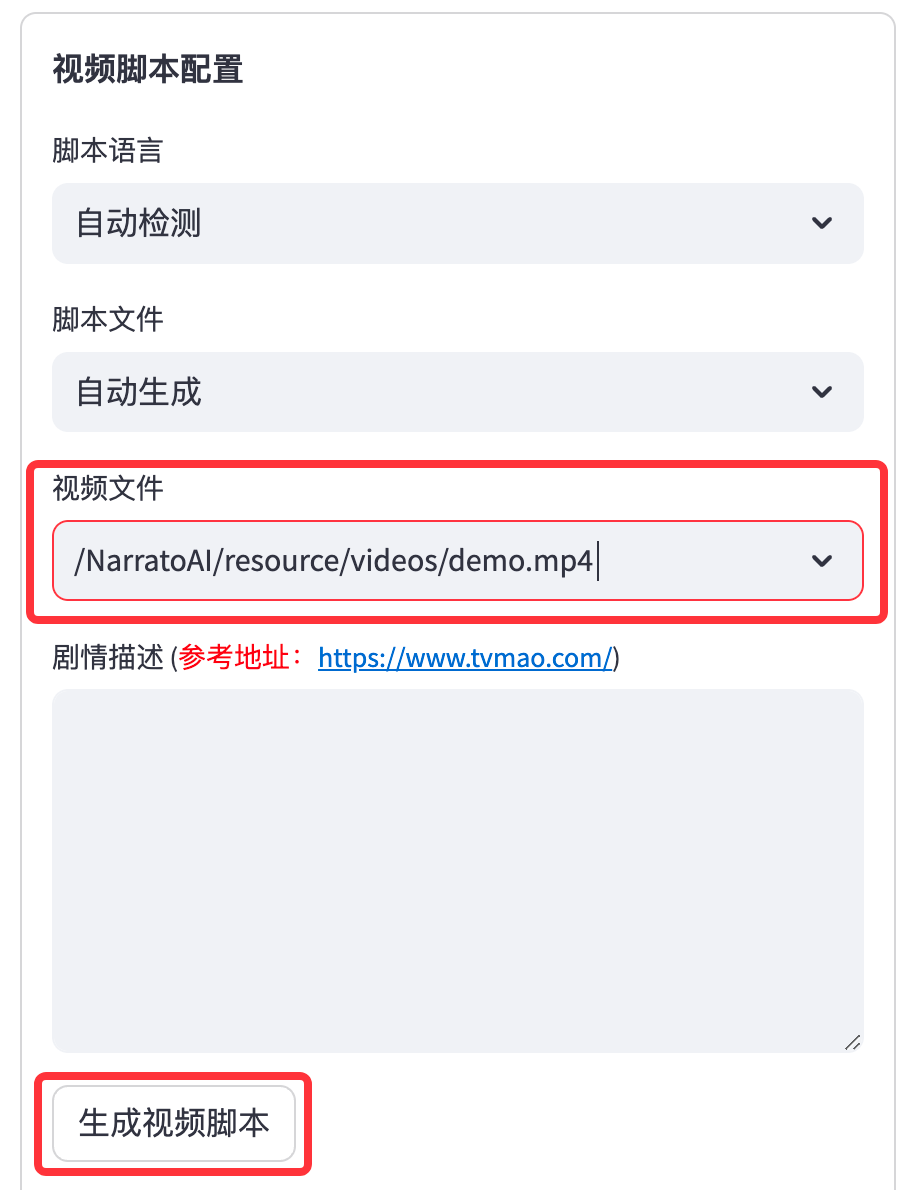
#### 2. 选择需要解说的视频,点击生成视频脚本 > 平台内置了一个演示视频,若要使用自己的视频,将mp4文件放在 `resource/videos` 目录下,刷新浏览器即可, > 注意:文件名随意,但文件名不能包含中文,特殊字符,空格,反斜杠等
002
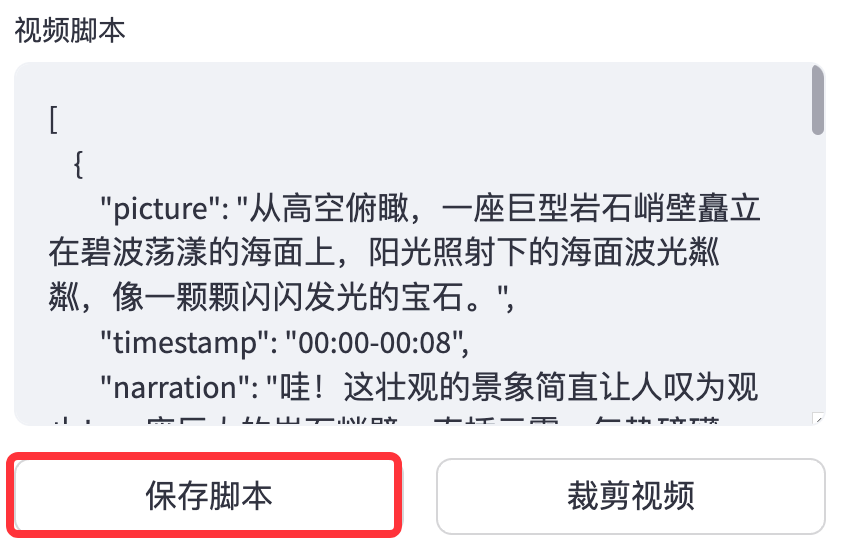
#### 3. 保存脚本,开始剪辑 > 保存脚本后,刷新浏览器,在脚本文件的下拉框就会有新生成的 `.json` 脚本文件,选择json文件和视频就可以开始剪辑了。
003
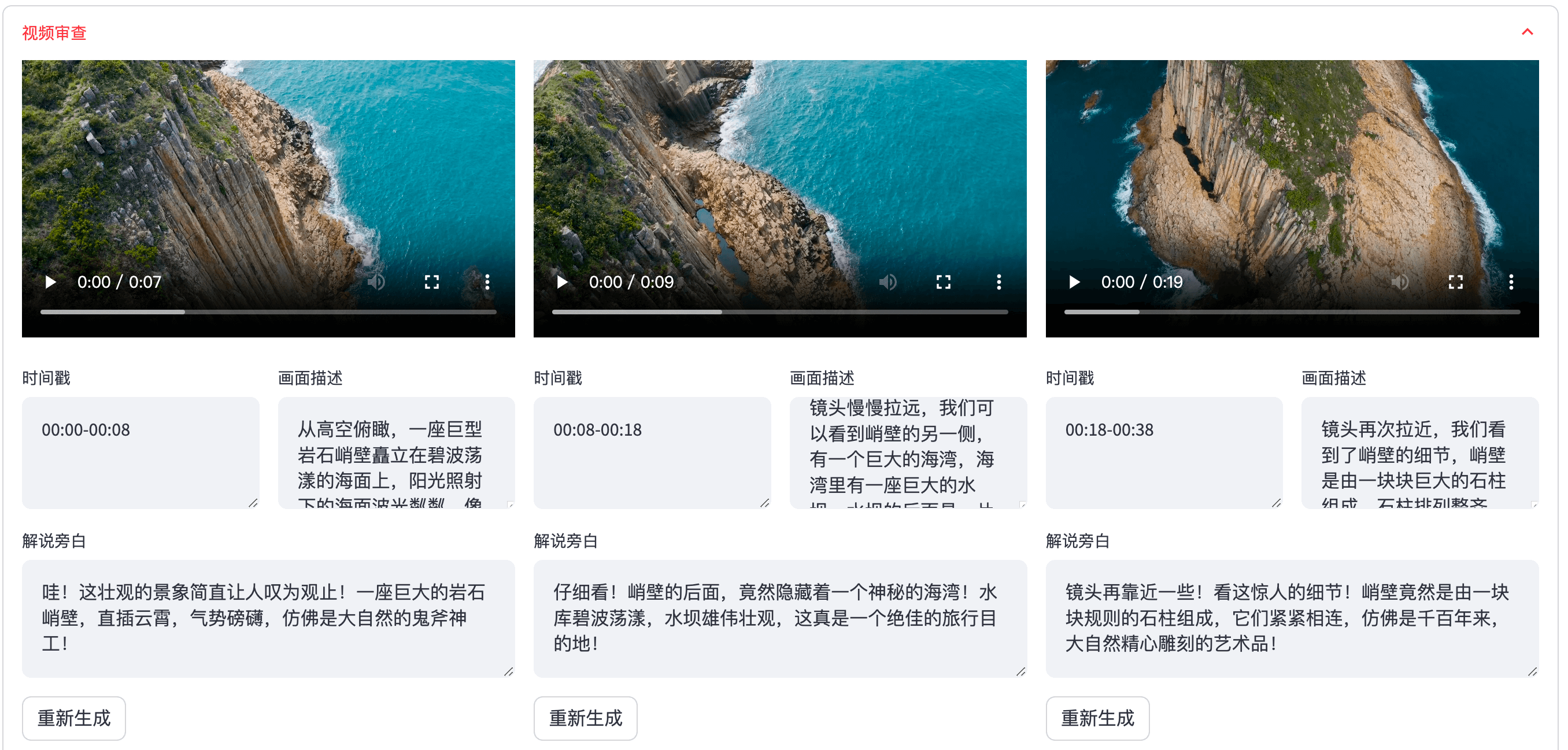
#### 4. 检查视频,若视频存在不符合规则的片段,可以点击重新生成或者手动编辑
003
#### 5. 配置视频基本参数
003
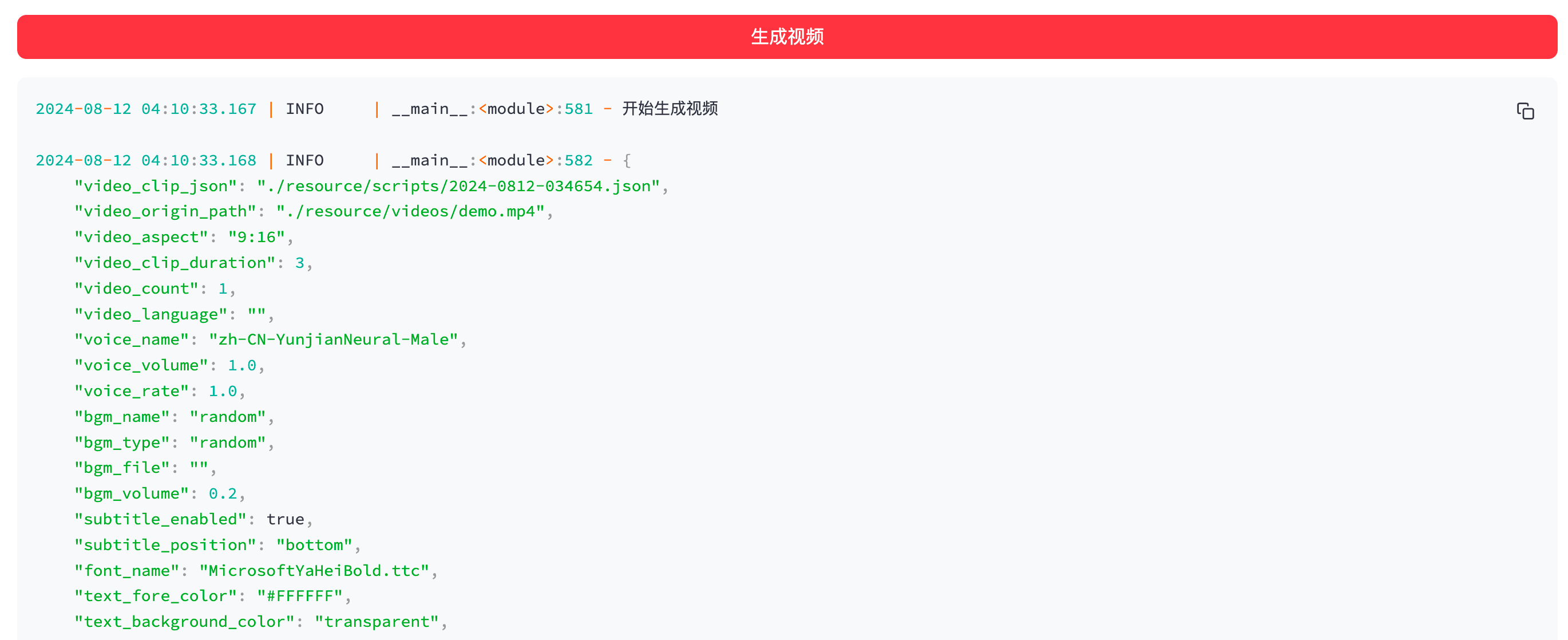
#### 6. 开始生成
003
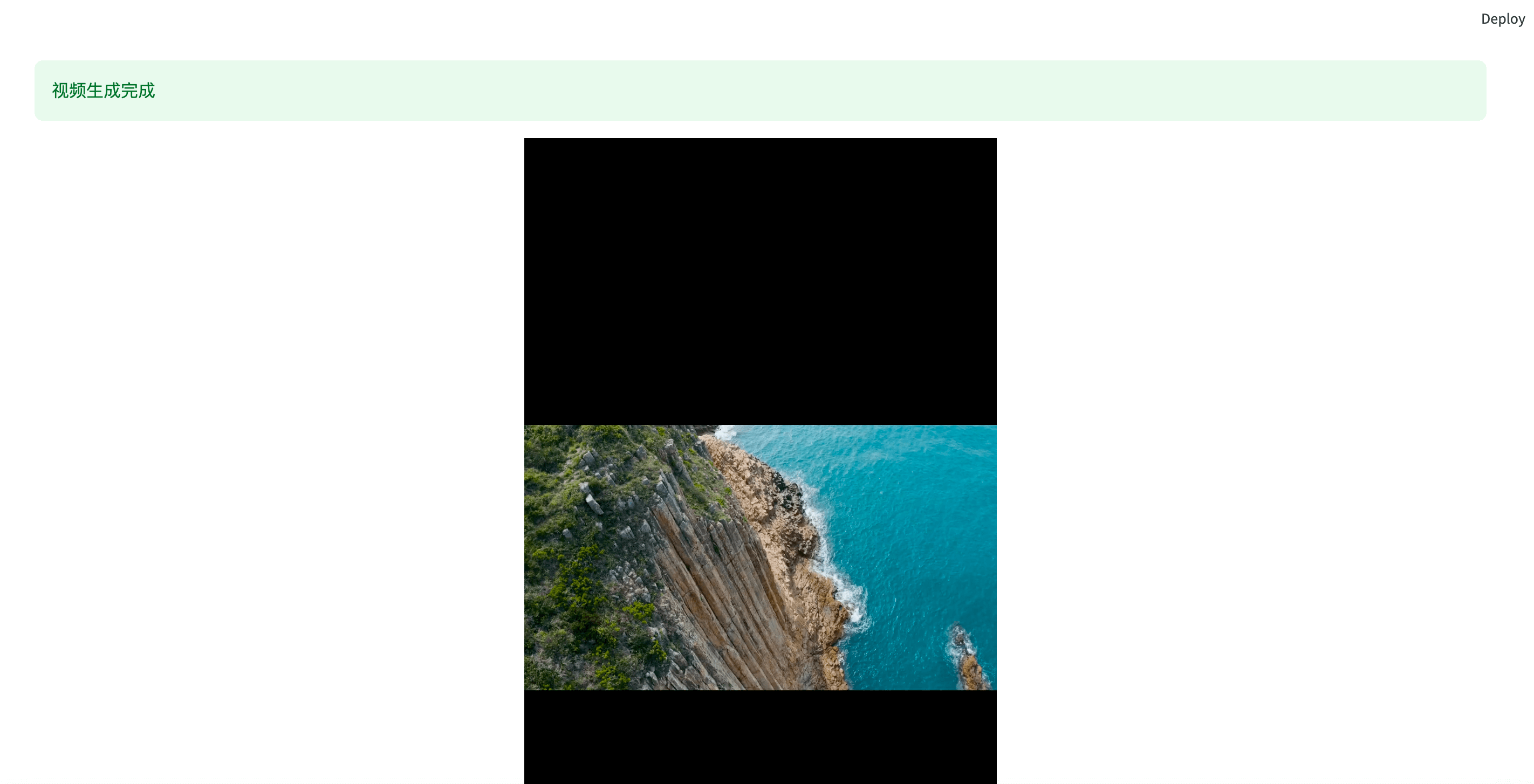
#### 7. 视频生成完成
003
## 开发 💻 1. 安装依赖 ```shell conda create -n narratoai python=3.10 conda activate narratoai cd narratoai pip install -r requirements.txt ``` 2. 安装 ImageMagick ###### Windows: - 下载 https://imagemagick.org/archive/binaries/ImageMagick-7.1.1-38-Q16-x64-static.exe - 安装下载好的 ImageMagick,注意不要修改安装路径 - 修改 `配置文件 config.toml` 中的 `imagemagick_path` 为你的实际安装路径(一般在 `C:\Program Files\ImageMagick-7.1.1-Q16\magick.exe`) ###### MacOS: ```shell brew install imagemagick ```` ###### Ubuntu ```shell sudo apt-get install imagemagick ``` ###### CentOS ```shell sudo yum install ImageMagick ``` 3. 启动 webui ```shell streamlit run ./webui/Main.py --browser.serverAddress=127.0.0.1 --server.enableCORS=True --browser.gatherUsageStats=False ``` 4. 访问 http://127.0.0.1:8501 ## 反馈建议 📢 ### 👏 1. 可以提交 [issue](https://github.com/linyqh/NarratoAI/issues)或者 [pull request](https://github.com/linyqh/NarratoAI/pulls) ### 💬 2. [加入开源社区交流群](https://github.com/linyqh/NarratoAI/wiki) ### 👉 3. [常见问题](https://thread-marsupial-df8.notion.site/105866888dab80988650fa063b1df4eb) ## 参考项目 📚 - https://github.com/FujiwaraChoki/MoneyPrinter - https://github.com/harry0703/MoneyPrinterTurbo 该项目基于以上项目重构而来,增加了影视解说功能,感谢大佬的开源精神 🥳🥳🥳 ## 请作者喝一杯咖啡 ☕️
Image 1 Image 2
## 许可证 📝 点击查看 [`LICENSE`](LICENSE) 文件 ## Star History [![Star History Chart](https://api.star-history.com/svg?repos=linyqh/NarratoAI&type=Date)](https://star-history.com/#linyqh/NarratoAI&Date)